
Note: Most SMTP servers do not require a password to send mail. For information about setting up a password check for sending mail, see the section "Troubleshooting."
To send the current message, click on the Send button or select Send Immediately from the Message menu. A progress window is displayed to show the progress of the transmission.
If you have the Immediate send option on, but want to put the current message in the queue, hold down the Shift key and click on the Send button. The Change Queueing dialog is displayed and you can set detailed instructions. For more details, see the section "Queueing a Message to Send at a Certain Time."
You can set up Eudora to warn you if you try to delete a queued message, or try to quit Eudora with queued messages. To do this, turn those options on in the Extra Warnings Options.
To put the current message in the queue, click on the Queue button or select Queue For Delivery from the Message menu. The message window is closed (if it was open), the message is saved in the Out mailbox marked Q (meaning it's ready to be delivered), and the date and time are placed in the Date column.
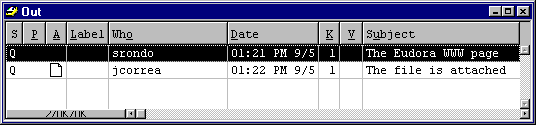
To send all of your queued messages, select Send Queued Messages from the File menu. A progress window is displayed momentarily at the top of the screen indicating the progress of the transmission.
If you have the Immediate send option off, but want to send a message immediately, hold down the Shift key and click on the Queue button. The Change Queueing dialog is displayed and you can select the Send message Right Now option.
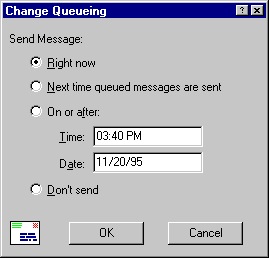
If you choose Right Now, the message is sent immediately when you click OK. If you choose Next time queued messages are sent, the message is sent the next time queued messages are sent.
If you choose On or After, you can use the Time and Date fields to fill in the time and date when the message should be sent. The message is saved in the Out mailbox with a T, in the status column, and the specified date and time in the Date column. The message is sent when the specified time arrives.
Important: For the message to be sent at the correct time, Eudora must be running at that time. If Eudora is not running, the message is sent the first time Eudora is run after the specified time has passed.
If you choose Don't Send for a message that has never been queued,
nothing
happens. If the message has been queued already, the message status is
changed
from queued (Q) to saved ( ). The message
is held in
the Out mailbox until it is either deleted or re-queued and sent.
). The message
is held in
the Out mailbox until it is either deleted or re-queued and sent.
).
The message is held in the Out mailbox until
it is either deleted, re-queued, or sent.


To put a copy of every outgoing message in the Out mailbox, turn on the Keep copies of Outgoing Mail option in the Sending Mail Options.
To put a copy of the current outgoing message in the Out mailbox, turn on the Keep Copy button in the message toolbar.
To put a copy of the current outgoing message in a particular mailbox, right click in the body of the message and select the mailbox from the Fcc menu.
In all these cases, when the messages are sent they are put in the specified mailbox with an S in the Status column, indicating that the message has been sent.
If none of these options are used, outgoing messages are put into the Trash mailbox.
Note: You can also set up a filter to save outgoing messages in particular mailboxes based on information contained in the message. See the section "Filtering Messages" for more information.

Copyright 1996 QUALCOMM Incorporated. All Rights Reserved.