
If the sender's text did not include style information, each line is prefixed by a greater-than symbol (>).

If the sender's text did include style information (e.g., bold text), it is quoted with greater-than and less-than symbols above it and below it, and a left sidebar.

Messages that have been replied to are identified with an "R" in the Status column of their message summary.
To include everyone who received the original message, select Reply to All from the Message menu.
To include yourself as a recipient, turn on the Include yourself option in the Replying Options. This only works if you are using Reply to All.
Note: To determine who you are, Eudora uses the "me" nickname. If there is no "me," Eudora uses the contents of the POP account and Return address fields from the Personal Information Options. The "me" nickname is particularly useful if you have multiple addresses and don't want replies to go to any of those addresses.
To put the addresses of the other recipients of the original message in the Cc field (instead of the To field), turn on the Put original To recipients in Cc field, not To field option in the Replying Options. Only the original sender's address is put in the To field. This only works if you are using Reply to All.
To copy the original message's priority to your replies, turn on the Copy original's priority to reply option in the Replying Options.
To map Ctrl-R to Reply to All instead of Reply, turn on this option in the Replying Options.


Note: If you forward an outgoing message (a message you sent), the attachment(s) is not automatically included.
Messages that have been forwarded are identified with an "F" in the Status column of their message summary.
To redirect the current message, select Redirect from the Message menu. A new message window is displayed with the original sender's address in the From field with the statement "by way of your address", the original sender's text in the message body, and the original attachments in the Attachments field. Make any changes you want, and enter the recipient's address in the To field. The message can then be sent or saved for further changes.
Note: You may want to enclose any changes in brackets ([]) so that you don't confuse the recipient about who wrote what.
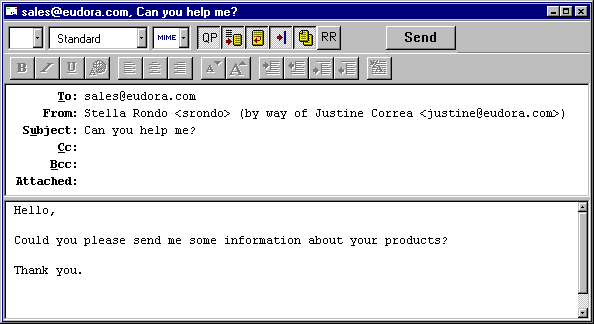
Messages that have been redirected are identified with an "D" in the Status column of their message summary.
When you use Redirect, your signature is not added to the message when it is sent, unless you originally created the message. Eudora considers the message to be originally from you if the address in the From field exactly matches your return address, or your nickname called "me."
The return message usually includes cryptic information that may let you determine the reason the message was rejected. It also includes the text of the original message.
You can easily recover the original message, make any corrections, and resend it. To do this for the current message, select Send Again from the Message menu. This eliminates the inserted extra text and reformats the message as it originally appeared. You can then make changes or additions and send the message again.

Copyright 1996 QUALCOMM Incorporated. All Rights Reserved.